MBM - How To
-
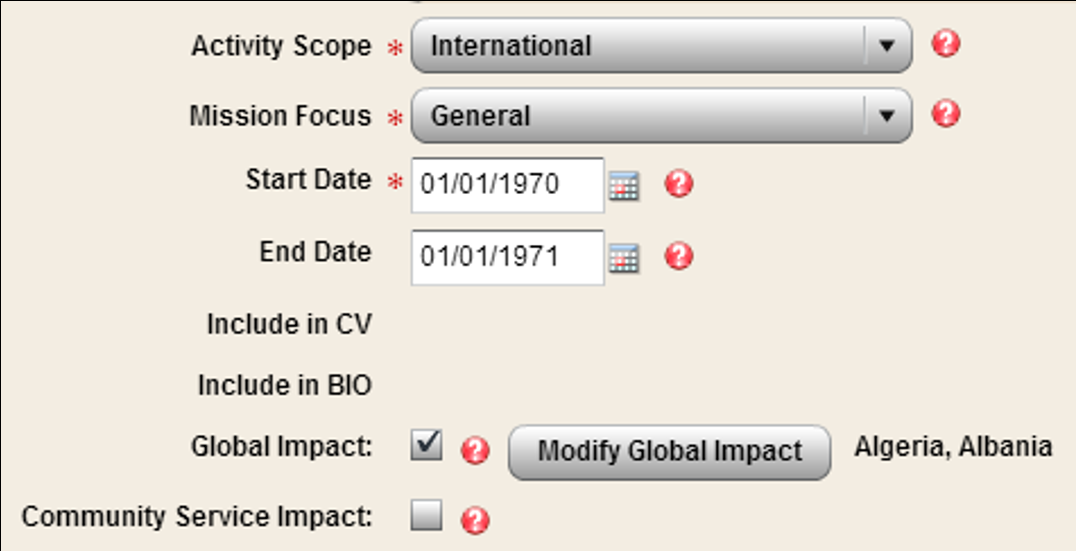
Check the Global Impact checkbox.

-
Click the Modify Global Impact button.
-
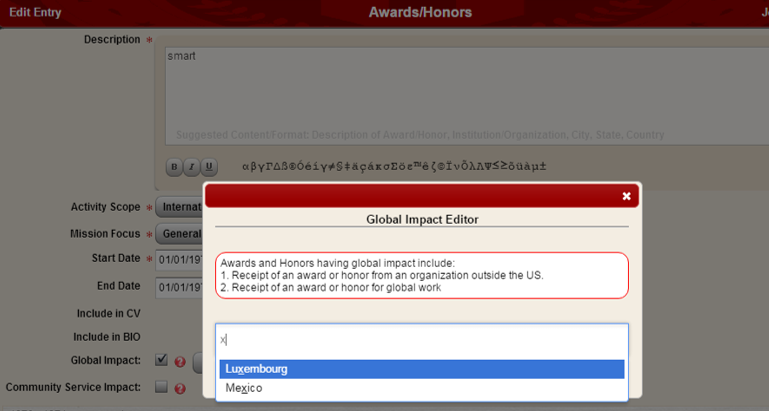
Enter the country or region corresponding to the global engagement of your activity. You can add more than one country or region. The tags you have selected will be displayed next to the Modify Global Impact button.
Please note that the Global U Inventory currently refreshes daily, so do not be alarmed if your updates are not immediately visible. Check back in 24 hours to confirm your profile is displayed correctly. If you encounter issues, please consult the Frequently Asked Questions page or contact Jon Hughes, Technology Specialist and Database Administrator