Elements - How To
There are two ways to tag activities in Elements: 1. tag when adding a new activity; 2. tag an existing activity. Instructions for both are included below.
When adding a new activity:
-
Login to Elements and click on ADD NEW for the category you wish to add an activity to (e.g. Service & leadership).

Or click VIEW ALL to see all your activities in that category and then click the + button to add a new activity.

-
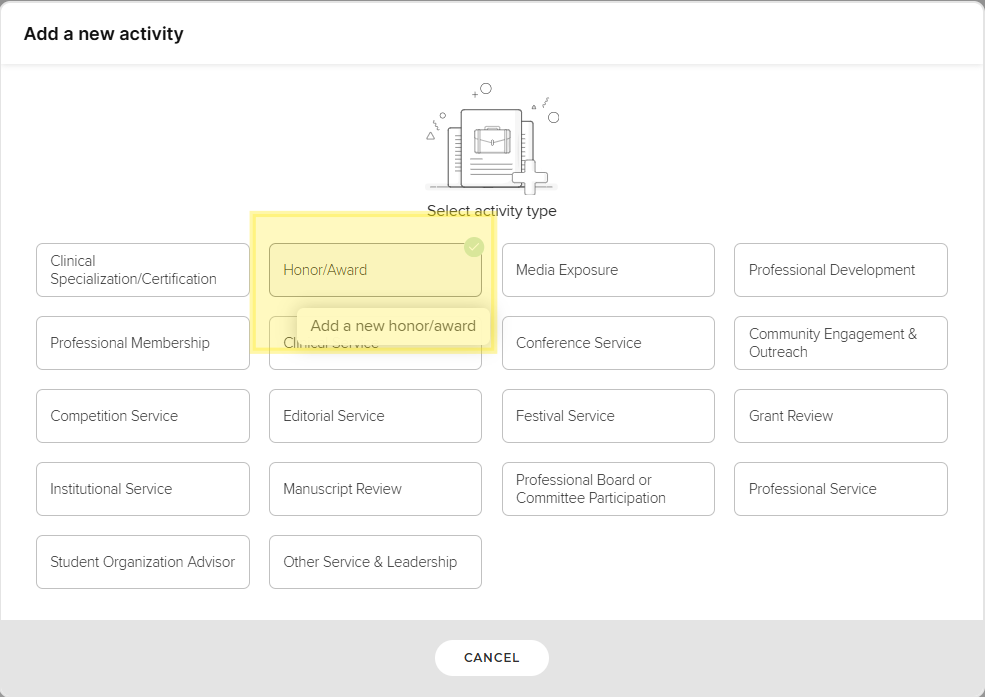
Select the type of activity you wish to add (e.g. Honor/Award).
-
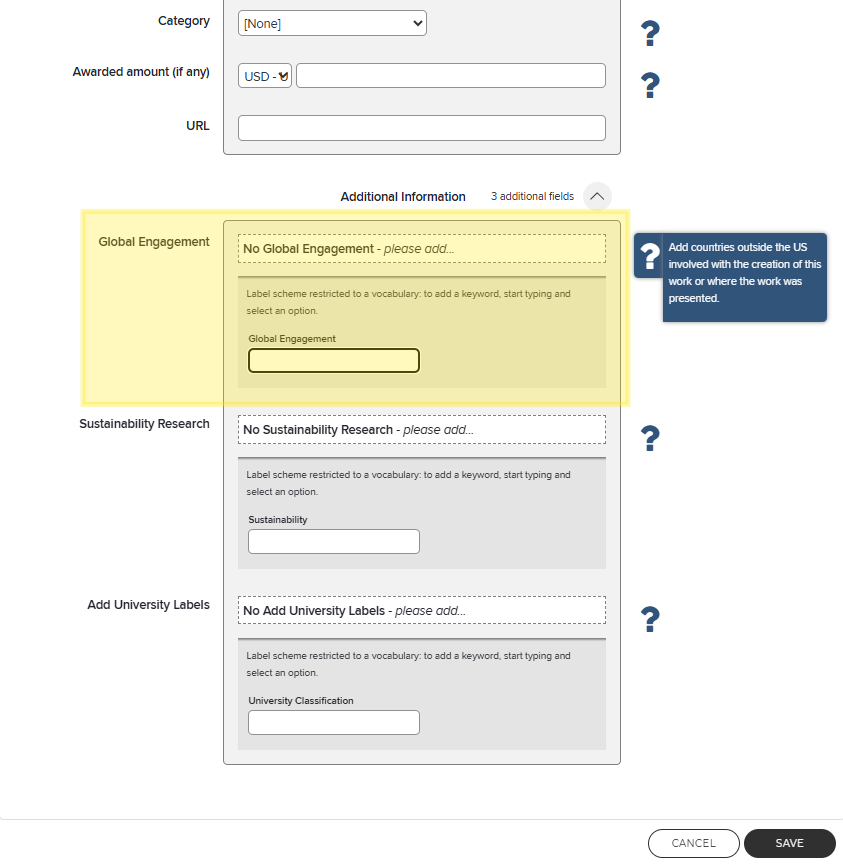
Navigate to the bottom of the form, click on Additional Information.

-
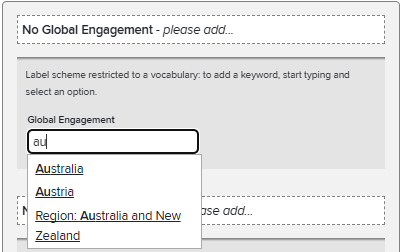
In the Global Engagement section, type the name of the countries or regions corresponding to the global engagement of your activity. You can add more than one country/region to an activity.
-
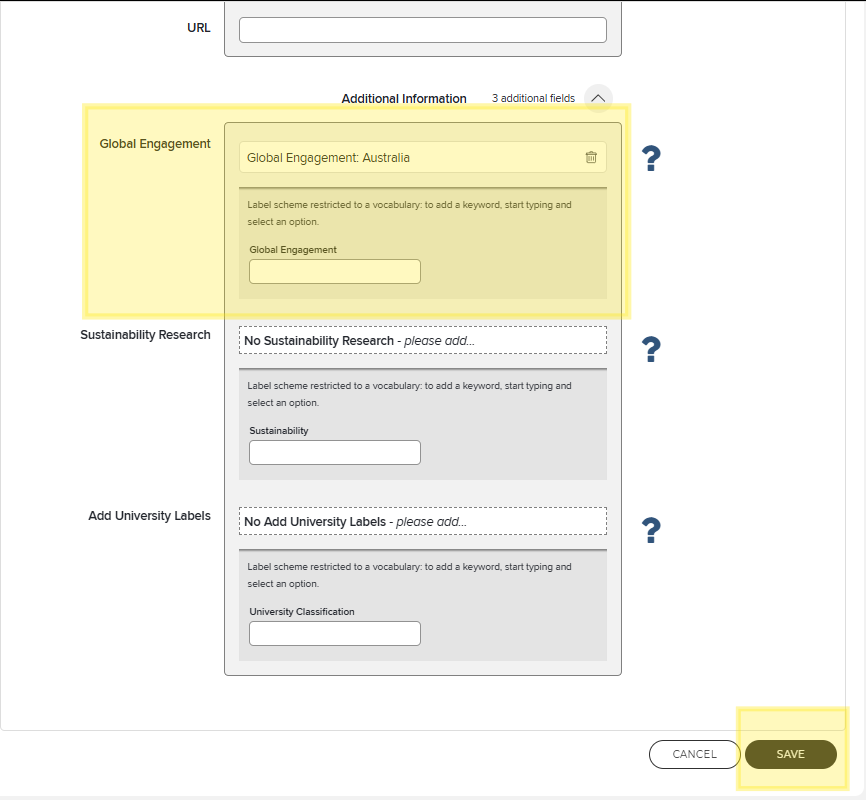
When the label has been added, you will see it listed at the top of that section.

-
Remember to click Save.
When editing an existing activity:
-
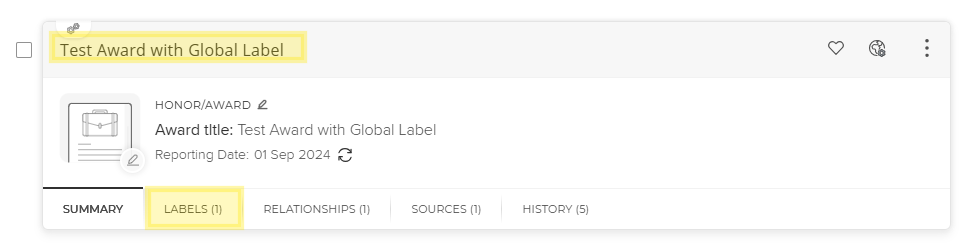
Select the activity by clicking on the title of the activity or the Labels tab.
-
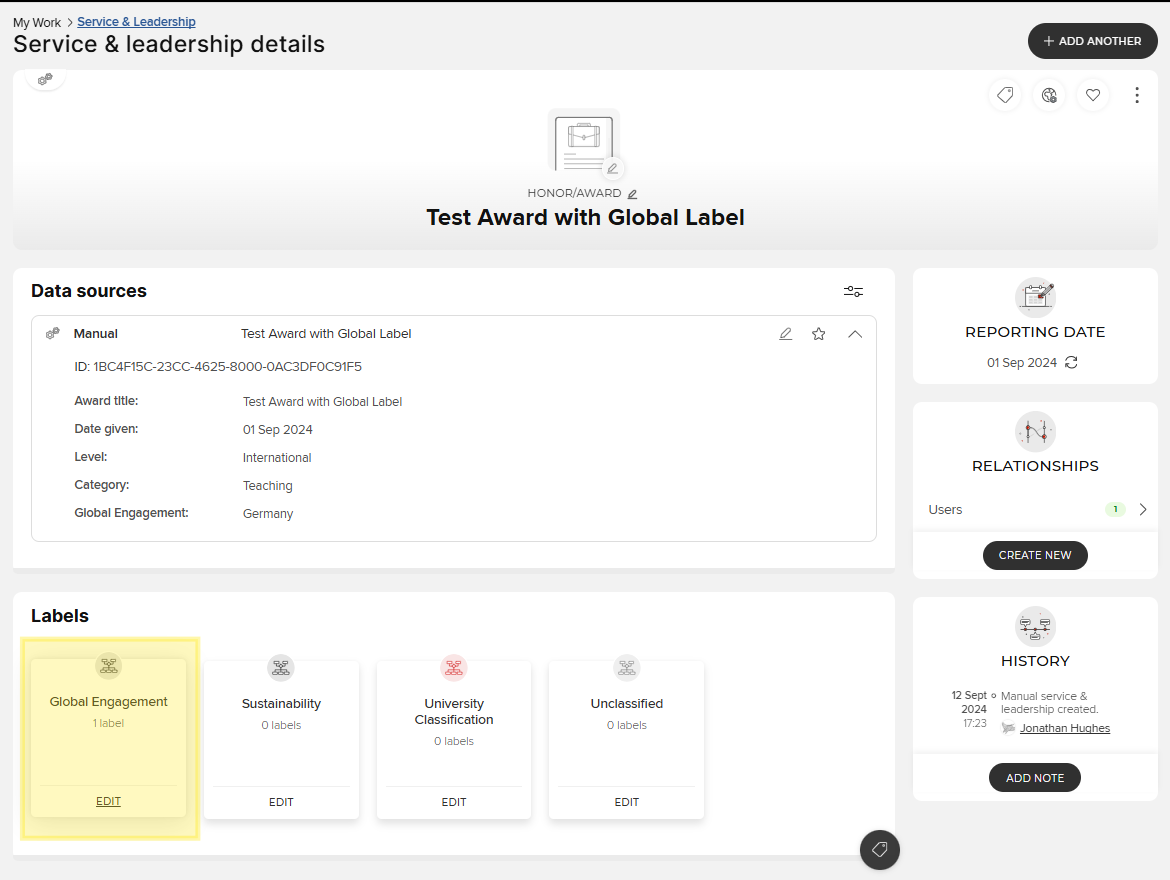
Find Global Engagement and click EDIT.
-
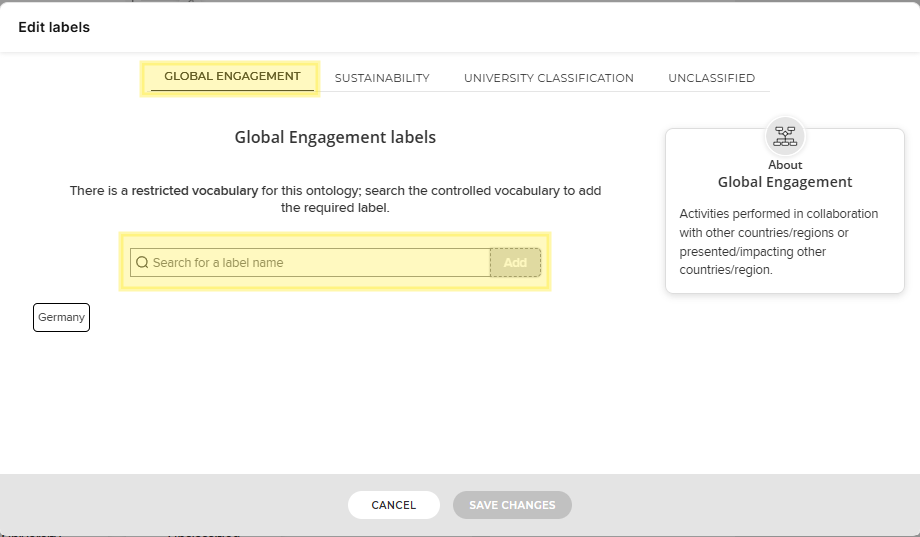
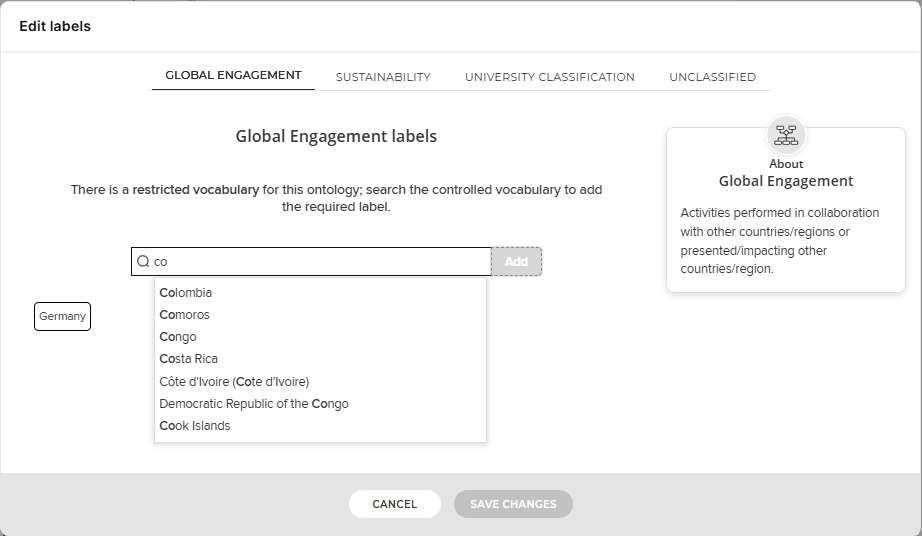
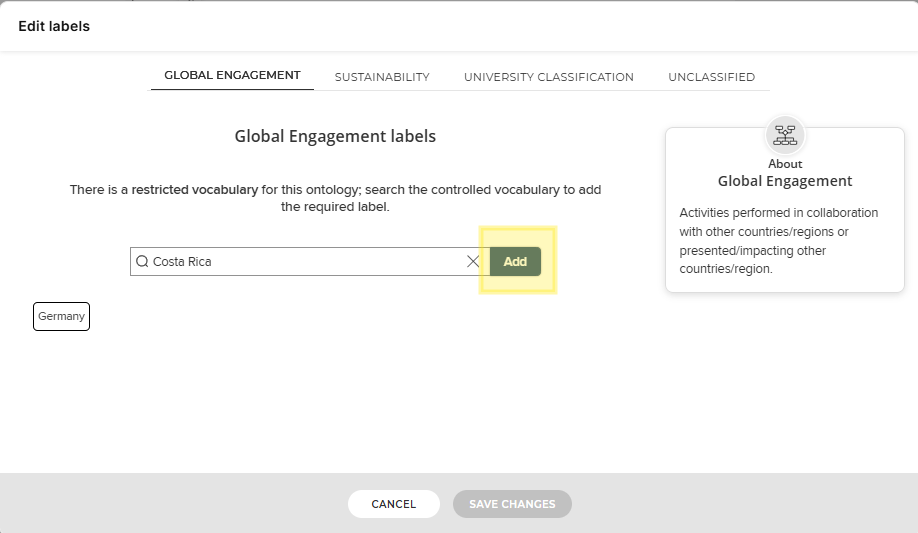
In Global Engagement labels, enter a country or region corresponding to the global engagement of your activity.
-
After entering the country/region name, click Add. Repeat this process to add more than one country/region to the activity.
-
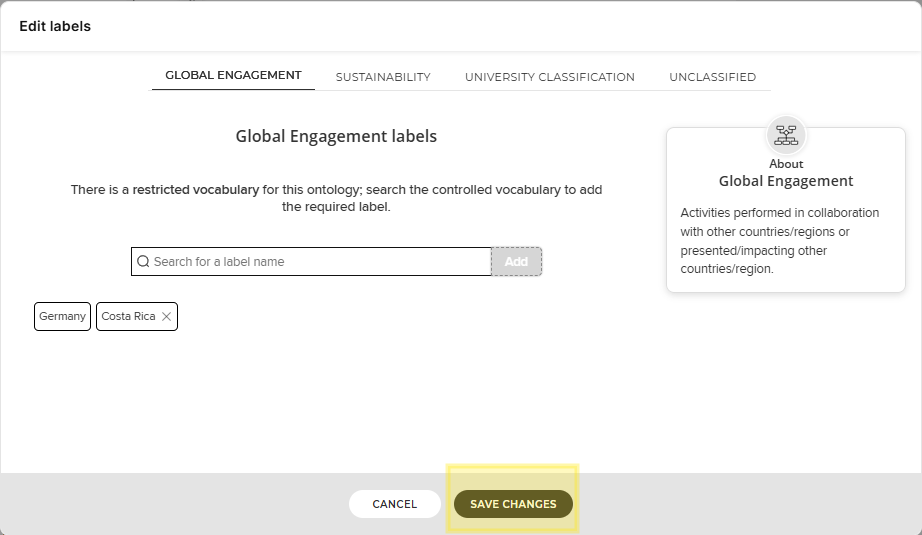
After adding the label(s), click Save.
Please note that the Global U Inventory currently refreshes daily, so do not be alarmed if your updates are not immediately visible. Check back in 24 hours to confirm your profile is displayed correctly. If you encounter issues, please consult the Frequently Asked Questions page or contact Jon Hughes, Technology Specialist and Database Administrator